
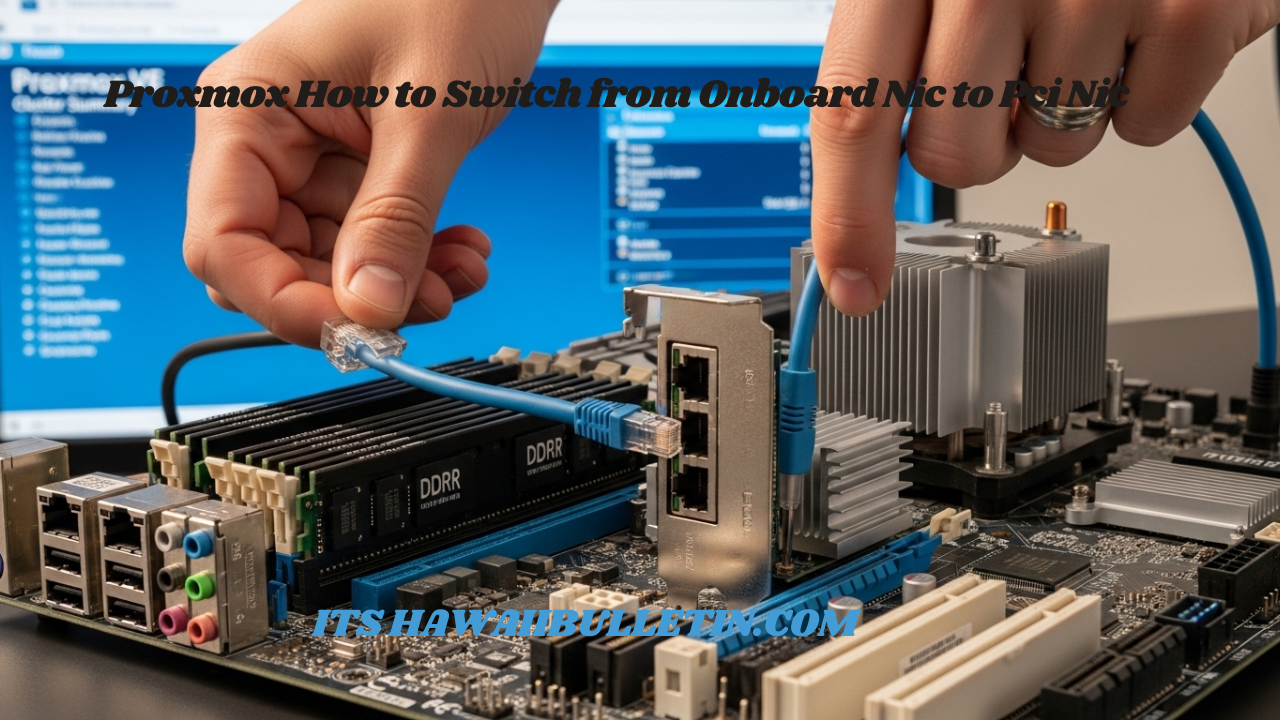
Introduction to Proxmox and Networking
Proxmox is a powerful virtualization platform that offers great flexibility and control over your virtual machines. One of the key elements in optimizing your Proxmox setup lies in how you manage network interfaces. While many users start with the onboard NIC (Network Interface Card) for simplicity, there are compelling reasons to consider making the switch to a PCI NIC. Upgrading can enhance performance, increase bandwidth, and provide better reliability for your networked applications.
In this guide, we’ll walk you through the process of switching from an onboard NIC to a PCI NIC in Proxmox. Whether you’re looking to boost throughput or simply want more robust networking capabilities, we’ll cover everything you need—from identifying your new card to troubleshooting any potential issues along the way. Let’s dive into transforming your Proxmox networking experience!
Key Takeaways:
-
Identify & Install: Use
lspcito detect your PCI NIC, shut down the host, and physically install the card. -
Reconfigure Network: Edit
/etc/network/interfacesor use the Proxmox GUI to replace the onboard NIC (e.g.,eth0) with the new PCI NIC. -
Test & Verify: After reboot, test connectivity with
pingandip acommands to ensure the PCI NIC is active and properly configured.
Benefits of Using a PCI NIC
Upgrading to a PCI NIC can significantly enhance your network performance. These cards often provide higher throughput and lower latency compared to onboard options. For users managing heavy data loads, this can make a noticeable difference.
Reliability is another major advantage of PCI NICs. They tend to be more robust, reducing the chances of disconnections or failures during critical operations. This reliability is crucial for virtual environments like Proxmox where uptime is paramount.
Additionally, PCI NICs typically support advanced features such as offloading and VLAN tagging. These capabilities allow for better traffic management and optimized resource allocation within your network infrastructure.
Many PCI NIC models offer multiple ports, enabling you to expand your networking capacity without needing additional hardware changes down the line. This flexibility ensures that as your needs grow, so too does your ability to adapt easily.
Steps for Switching from Onboard NIC to PCI NIC
Switching from an onboard NIC to a PCI NIC in Proxmox involves several key steps.
First, identify the PCI NIC you plan to use. Ensure compatibility with your system and gather any necessary drivers or documentation.
Next, shut down your Proxmox host properly. This step is crucial for preventing data loss and ensuring hardware changes are recognized upon reboot.
Once powered down, remove the existing onboard NIC from your network configuration file. Editing this configuration ensures that Proxmox doesn’t attempt to utilize it after the switch.
Now, install the PCI NIC into its designated slot on the motherboard. Secure it firmly before reassembling your case.
Boot up your server and access network settings within Proxmox to configure the newly installed PCI NIC according to your requirements for optimal performance.
A. Identifying the PCI NIC
To switch from an onboard NIC to a PCI NIC in Proxmox, the first step is identifying your PCI NIC. This process begins with physically examining your server or workstation.
Look for the expansion slots on your motherboard. These are where the PCI cards are installed. Your new network interface card will typically have a label indicating its brand and model.
If you’re unsure about what to look for, consult product documentation or online resources related to your specific hardware configuration. This can provide valuable insights into compatibility and specifications.
Once located, remember that you’ll need some system information as well, particularly if you plan to install drivers manually later on. Use commands like `lspci` in Linux terminal; this will display a list of all connected devices, including your PCI NIC’s details.
This initial identification sets the stage for a seamless transition in networking capabilities.
B. Shutting Down Proxmox Host
Before you switch from your onboard NIC to a PCI NIC, it’s essential to shut down your Proxmox host properly. This step ensures that all running virtual machines and services are safely halted.
Begin by accessing the Proxmox web interface. Navigate to the node where you want to perform the operation. Here, you’ll find options for managing power states.
Choose “Shutdown” or “Reboot” based on your preference. If you’re only replacing the NIC, a simple shutdown is often sufficient.
Ensure you’ve backed up any critical data beforehand. Though unlikely, unexpected issues can arise during hardware changes.
Once initiated, give it some time for all processes to terminate gracefully before proceeding with physical adjustments. Patience is key here; rushing could lead to corrupted configurations or lost work in VMs.
C. Removing the Onboard NIC from Network Configuration
Removing the onboard NIC from your Proxmox network configuration is a critical step in ensuring that your system runs smoothly with the new PCI NIC. Start by accessing the Proxmox web interface and navigating to the ‘Datacenter’ section.
Once there, locate the node where you want to remove the onboard NIC. Click on it, then head over to ‘Network’. You will see a list of all active network interfaces.
Identify your onboard NIC, which typically has a name like `eth0` or similar. Before making any changes, double-check that you’ve backed up your configurations as a precaution.
To proceed, select the onboard NIC and choose to delete or disable it from this view. Save these changes before moving onto further steps in configuring your PCI NIC for optimal performance without any lingering conflicts from previous settings.
D. Installing and Configuring the PCI NIC
Once the PCI NIC is physically installed, it’s time to configure it in Proxmox. Start by powering on your server and accessing the Proxmox web interface.
Navigate to the “Datacenter” view, then click on “Nodes” and select your host. Go to the “Network” tab where you should see an option for adding a new network interface.
Select your newly installed PCI NIC from the dropdown menu. Assign an appropriate IP address, subnet mask, and gateway depending on your network setup. Be cautious with these settings; incorrect configurations can lead to connectivity issues.
Save changes and apply them. You might need to restart networking services or even reboot the entire system for all modifications to take effect properly. After that, verify that the PCI NIC is operational by checking its status within Proxmox or through terminal commands like `ip a` or `ifconfig`.
Testing Network Connectivity
Once you’ve installed your PCI NIC and completed the configuration, it’s time to ensure everything is functioning smoothly. Start by checking whether the system recognizes the new card.
Use commands like `ip a` or `ifconfig` in the terminal. They will display all available network interfaces. Look for your PCI NIC in this list.
Next, test connectivity to your router or gateway using the `ping` command followed by its IP address. Successful replies confirm that communication is possible.
Don’t forget to verify DNS resolution as well. Attempt to ping a well-known website like Google with `ping www.google.com`. If it resolves correctly, you’re on track.
It’s also wise to check connections from virtual machines (VMs) linked to this NIC. This ensures seamless network access across your environment.
Troubleshooting Common Issues
When switching from an onboard NIC to a PCI NIC in Proxmox, issues can arise that may hinder your network performance. One common problem is the system not recognizing the new hardware. Ensure the PCI card is securely seated and check for any BIOS settings related to integrated peripherals.
Another frequent issue involves incorrect driver support. Verify that your operating system has the necessary drivers installed for your new PCI NIC. You might need to download them from the manufacturer’s website or use package management tools available in Proxmox.
Additionally, if you’re experiencing connectivity problems after installation, double-check your network configuration files. Misconfigurations can easily lead to IP conflicts or disconnections.
Keep an eye on logs located under `/var/log/syslog` for real-time insights into what might be going wrong with your setup. They often point directly to software-related issues or missing dependencies that could affect functionality.
Alternative Options for Network Switching in Proxmox
When exploring alternatives to switch from onboard NIC to PCI NIC in Proxmox, consider virtual networking options. Bridged networking is a popular choice, allowing VMs to connect directly with the physical network. This setup can enhance performance and simplify management.
Another option is using VLANs (Virtual Local Area Networks). VLANs provide segmentation within your network, making traffic management efficient while still leveraging the existing hardware. They allow for more structured communication among various devices.
Additionally, you might explore bonding multiple NICs together. Network bonding aggregates bandwidth and offers redundancy if one interface fails. This way, you can improve overall reliability without needing new hardware.
Software-defined networking (SDN) also opens up possibilities for advanced users looking for flexibility in their configurations. Leveraging tools like Open vSwitch allows dynamic control over your network settings based on real-time demands or conditions.
Each of these methods has its own set of advantages tailored to specific needs within a Proxmox environment.
FAQs
When exploring Proxmox, questions often arise. One common query is whether Proxmox supports PCIe passthrough. Yes, it does! This feature allows you to dedicate hardware resources directly to virtual machines for enhanced performance.
Another frequent question concerns assigning a physical NIC to a VM. You can easily allocate specific network interfaces using the interface settings within the VM configuration.
Some users wonder how to move their Proxmox VMs to another drive. The process involves backing up your VM and restoring it on the new storage location, which ensures no data loss during transfer.
Changing the node IP in Proxmox also raises inquiries. It’s straightforward; just access the network configuration file and modify the desired parameters according to your needs.
These topics reflect only a fraction of what users grapple with when navigating their Proxmox environment and transitioning from onboard NICs to PCI ones.
Does Proxmox have PCIe passthrough?
Proxmox does indeed support PCIe passthrough, allowing you to assign a physical PCI device directly to a virtual machine. This feature is particularly useful for enhancing performance in scenarios where high-speed data transfer or specialized hardware functionality is necessary.
Setting up PCIe passthrough can significantly boost the capabilities of your VMs. You can utilize dedicated graphics cards, network interface cards (NICs), and even storage controllers without the overhead of virtualization layers.
To implement this effectively, ensure that your CPU and motherboard support Intel VT-d or AMD-Vi technologies. These features enable direct I/O access from the VM to the hardware device.
Once confirmed, you’ll need to configure your Proxmox environment accordingly. The process involves editing system files and adjusting VM settings for optimal performance. While it may seem complex at first glance, detailed guides are available within the Proxmox community forums and documentation to assist you through each step.
How to assign physical nic to vm?
Assigning a physical NIC to a VM in Proxmox can greatly enhance network performance. Start by ensuring that your hardware is compatible with PCI passthrough.
Access the Proxmox web interface and select your desired virtual machine. Navigate to the “Hardware” tab where you’ll find options for adding devices. Look for “Add” followed by selecting “Network Device.”
Select the type of bridge you want, usually vmbr0 or any other configured bridged network. The critical part comes next—choose the option for a physical NIC rather than using virtual interfaces.
After configuring these settings, save changes and start up your VM. It will now utilize the assigned NIC directly, allowing it to access networks more efficiently without relying on virtualization layers.
Monitor performance through logs or terminal commands to ensure everything runs smoothly post-assignment.
How to move Proxmox vm to another drive?
Moving a Proxmox VM to another drive can seem daunting, but it’s straightforward with the right steps. Start by ensuring that you have a backup of your virtual machine. This precaution protects your data during the transfer process.
Next, identify the source and destination drives within your Proxmox environment. Use tools like `lsblk` or access the storage tab in the web interface for clarity on available disks.
Once you’ve confirmed both locations, shut down the VM through the Proxmox interface to prevent any data inconsistencies. You can then use commands like `qm move_disk` followed by specifying your VM ID and target storage location.
After moving is complete, power up the VM again to verify everything is functioning correctly on its new drive. Always check logs if issues arise during or after this transition; they provide vital insights into potential problems.
How to change node IP Proxmox?
When it comes to managing a Proxmox environment, changing the node IP can be necessary for various reasons. It might be due to network reconfiguration or simply wanting to assign a more suitable address. Here’s how you can do it effectively.
First, access your Proxmox web interface. Navigate to the “Datacenter” section and select the node you want to modify. Click on “System” in the left-hand menu and then go to “Network.”
You will see a list of interfaces currently configured on your host. Identify the interface whose IP address you wish to change, usually labeled as `vmbr0` if it’s tied into virtual bridges.
Click on “Edit” next to that interface. You’ll need to input your new desired static IP address, subnet mask, and gateway settings here. It’s crucial that these values fit within your existing network configuration.
After you’ve made all necessary adjustments, save them by clicking “Apply.” However, remember that these changes won’t take effect until you restart networking services or reboot your Proxmox host.
To ensure smooth functionality after making this change, test connectivity from another machine on the same network using ping commands or similar tools.
Switching from an onboard NIC to a PCI NIC opens up avenues for enhanced performance while also allowing flexibility with configuration options like changing node IPs when needed. This process is essential for ensuring optimal network communication in virtualized environments like Proxmox.